WordPress in a world of vulnerabilities: why you should turn on automatic updates
By default you’ve likely already got these WordPress settings enabled, but it’s worth double-checking in case you don’t.


WordPress has automatic update features built-in, and we think you should use them.
Security flaws affect WordPress fairly often. One recently discovered WordPress critical vulnerability concerned us though; not just because of its threat level, but instead because there were tens of thousands of attempts to exploit the vulnerability on the same day WordPress patched it. With the way things are heading, immediate attempts to exploit like this will keep happening.
With WordPress security fresh on our minds, we thought it was worth taking a moment to highlight the growing rate of critical vulnerabilities being discovered, and underline just how quickly these vulnerabilities get exploited by nefarious people.
Autoupdates fix critical security flaws that are being exploited within hours of their public disclosure.
It’s not all a story of doom and gloom though. If you’re running a WordPress site with us, there are some simple steps you can take to keep your website automatically updated and protected from these threats. By default you’ve likely already got these WordPress settings enabled. Some of you won’t have the settings enabled though—so when we saw this vulnerability pop up, it seemed like a good time to remind you of the risks that disabling updates invites.
Attacks are coming quicker
Criminals were jumping at the chance to exploit this vulnerability within hours of WordPress releasing a patch.
With AI-powered tools, vulnerabilities can be exploited by thousands of people within hours of it being publicly reported. It leaves little room for hesitation.
To keep ahead of this race to exploit your websites, WordPress has automatic updating features to keep websites patched. WordPress enables this feature by default, meaning very few sites should actually be compromised by the exploit.
But, it’s a feature that some of you will have opted out of—either intentionally, or without necessarily knowing the risks it opens you up to.
Now’s a good time to check that you’ve got auto-updating on. It’s not something you’d necessarily think about much, and there could have been a good reason to disable auto-updates once upon a time. If you flicked it off a while ago, it’s worth assessing the risks in light of today’s security environment and consider whether it’s still the right move.
If you’re unsure whether or not you’ve got WordPress automatic updates enabled, don’t stress: we’ll guide you through the process to automate your updates.
Related article: Tips to keep WordPress secure
How to enable automatic updating
If we hadn’t already made it clear, our advice here is to keep WordPress automatic updates enabled.
By default, MyHost accounts manage WordPress sites through cPanel. You should be able to see an overview of all your websites when you Log in to cPanel, and at the bottom of each panel see Autoupdate settings.
You’ll notice that there are three options here:
No.Yes, but only minor (security) updates.Yes, all (minor and major) updates.
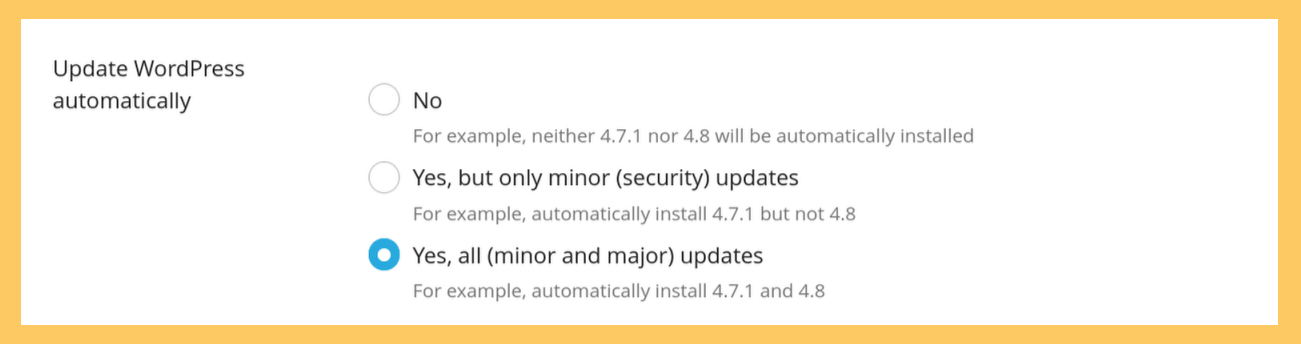
For security reasons, it's generally advisable to opt into Yes, all (minor and major) updates.
In WordPress land, major releases are marked with the first decimal point eg. 7.2, 7.1 etc. These major versions updates come around a few times a year. Sometimes you’ll have reasons to want to delay installing major version updates—it can occasionally risk breaking older themes or plugins, and sometimes major new versions of WordPress can have some little bugs. By skipping these updates you are committing to manually updating WordPress multiple times per year (or falling behind).
If you have your reasons, Yes, but only minor (security) updates is a valid choice. It’ll keep you patched and covered for security updates like this new vulnerability. Both the Yes options will cover you for these kinds of patches—the “only minor” version just prevents your site from being overhauled with major WordPress version iterations.
How bad is falling behind on version updates? WordPress themselves makes it clear that the only current officially supported version is the last major release of WordPress. Previous major releases before this may or may not get security updates as serious exploits are discovered, so if you want to stay protected you’ll need to be updated to the latest WordPress version.
For more thorough instructions, check out cPanel’s article on enabling automatic updates for my WordPress sites.
The risks of not doing it
There is obviously a third option here, to entirely opt-out of automatic WordPress updates. We don’t recommend this unless you have a very good and informed reason to choose it. Autoupdates fix critical security flaws that are being exploited within hours of their public disclosure, like the one mentioned at the top of the article. With automatic updates completely turned off, you’ll either be spending lots of time manually patching your website, or leaving your site exposed to these vulnerabilities. And as we mentioned, there’s lots of people out there desperate to exploit your site armed with AI tools.
Unless you’re working with a developer who has good reasons to completely opt-out of automatic WordPress updates, then we really advise against it.
Because even if you are cautious about WordPress automatic updates introducing bugs or compatibility issues, did you know that WordPress has a tool to clone your website and check that all updates are working as intended before rolling them out to your live site.
Worried about updates breaking things? WordPress has a tool for checking that too
Inside cPanel, there’s a handy tool to verify that WordPress updates are working as intended before updating your site.
Navigate to the WordPress Management page, and look for the Smart Update toggle.
The feature works by creating a clone of your site, running a series of tests looking for problems like HTTP errors, PHP errors and warnings, and inaccessible pages, on the site's state before updating it. The cloned version is then updated, and the same set of tests are run on the updated version. The results get compared, and potential problems get reported back to you next time you log in to cPanel.
Smart Update is available to all MyHost WordPress Hosting customers. Just keep in mind that if you’re close to the total File Usage limit (250,000 max), Smart Update involves cloning your site, so if you don’t have room you’ll have issues.
You can check your File Usage stats on the right side of the cPanel home page, under Statistics.
Keeping your bases covered
Thankfully, cPanel’s automated WordPress tools make it easy to keep your site updated and protected.
On the other hand, if you've decided to try to keep your website updated manually just really consider the choice you’re making. You need to be prepared for a future where common vulnerabilities are harder to keep up with, urgent patching is required more often, and malicious actors are packing more powerful tools than ever.
Because attackers are targeting vulnerabilities so quickly these days, it’s really as simple as being safe rather than sorry.
People Sharing The Love
Fast response time. A very pleasant experience with my first time delving into WordPress. Response time to questions to MyHost support was very fast and helpful. Installation was straightforward as it should be. Great job MyHost. Thank you very much. ★★★★★

Very happy customer. I wish I looked into changing to these guys years ago! Very pleased with their pricing, helpfulness and timely responses to all my questions. Plus I so much prefer the simplicity of their email UI compared to what I was on previously. Would definitely recommend MyHost to anyone! ★★★★★

Fantastic support with hosting, and just a fantastic knowledge base overall. I was let down by Crazy Domains, nothing worked. MyHost transferred the domain and everything worked as expected instantly. I made a mistake and the site went down, but within 30 minutes MyHost reverted my changes and saved the day. ★★★★★

More from MyHost
Hosting & More
Web Hosting
From $7.95/mo
Domains
From $12.00/yr
Virtual Servers (VPS)
From $16.95/mo
Reseller Hosting
From $25.95/mo
Any questions?
Any questions about WordPress hosting? Get in touch with our friendly team.
Contact us